How to Use Arduino as a Keyboard or Mouse
What is a mouse/keyboard emulator?
A mouse/keyboard emulator on Arduino means the board pretends to be a real USB keyboard or mouse when plugged into a computer.
Instead of sending data over serial like a normal Arduino sketch, the board identifies itself as a USB HID device (Human Interface Device), the same category used by real keyboards and mice. Visit here for more information.
This tutorial is based on the circuit of a simple button with a digital input resistor. Please refer to this tutorial for the wiring.
Arduino HID vs Serial Communication
| Feature | HID Emulation | Serial Communication |
|---|---|---|
| Purpose | Pretend to be keyboard/mouse | Send data between devices/programs |
| How PC sees it | Keyboard, mouse, joystick | COM port / serial device |
| Driver needed | Usually no | Usually USB serial driver |
| Human input simulation | Yes | No |
| Can type into apps directly | Yes | No |
| Can move mouse cursor | Yes | No |
| Communication type | HID protocol | UART/USB Serial |
| Typical libraries | Keyboard.h, Mouse.h | Serial.h |
| Data visibility | Acts as user input | Raw data stream |
| Best for | Automation/macros/controllers | Sensors/debugging/device communication |
| Security sensitivity | Higher | Lower |
| Ease of debugging | Harder | Easier |
| Works in BIOS/login screen | Often yes | Usually no |
| Bidirectional communication | Limited | Excellent |
| Speed for data transfer | Lower | Better for data |
| Common boards | Leonardo, Micro, UNO R4 series | Almost all Arduino boards |
In short, if you only need simple interaction (no raw data and two-way communication) to replace the mundane mouse and keyboard, the HID Emulation is easier to set up and more straightforward to use than serial communication.
Getting started
This code will make every button click into pressing a "w" on the keyboard.
#include <Keyboard.h>
boolean prevBtnState = LOW;

void setup() {
  Keyboard.begin();
  delay(1000);

  pinMode(2, INPUT_PULLUP); // Internal pull-up enabled
  Serial.begin(9600);
}

void loop() {
  int btnState = digitalRead(2);
  if ( btnState == LOW && prevBtnState == HIGH ) {
      Serial.println("1");
      Keyboard.press('w');
      delay(100);
      Keyboard.releaseAll();
      delay(1000);

  }
  prevBtnState = btnState;
}
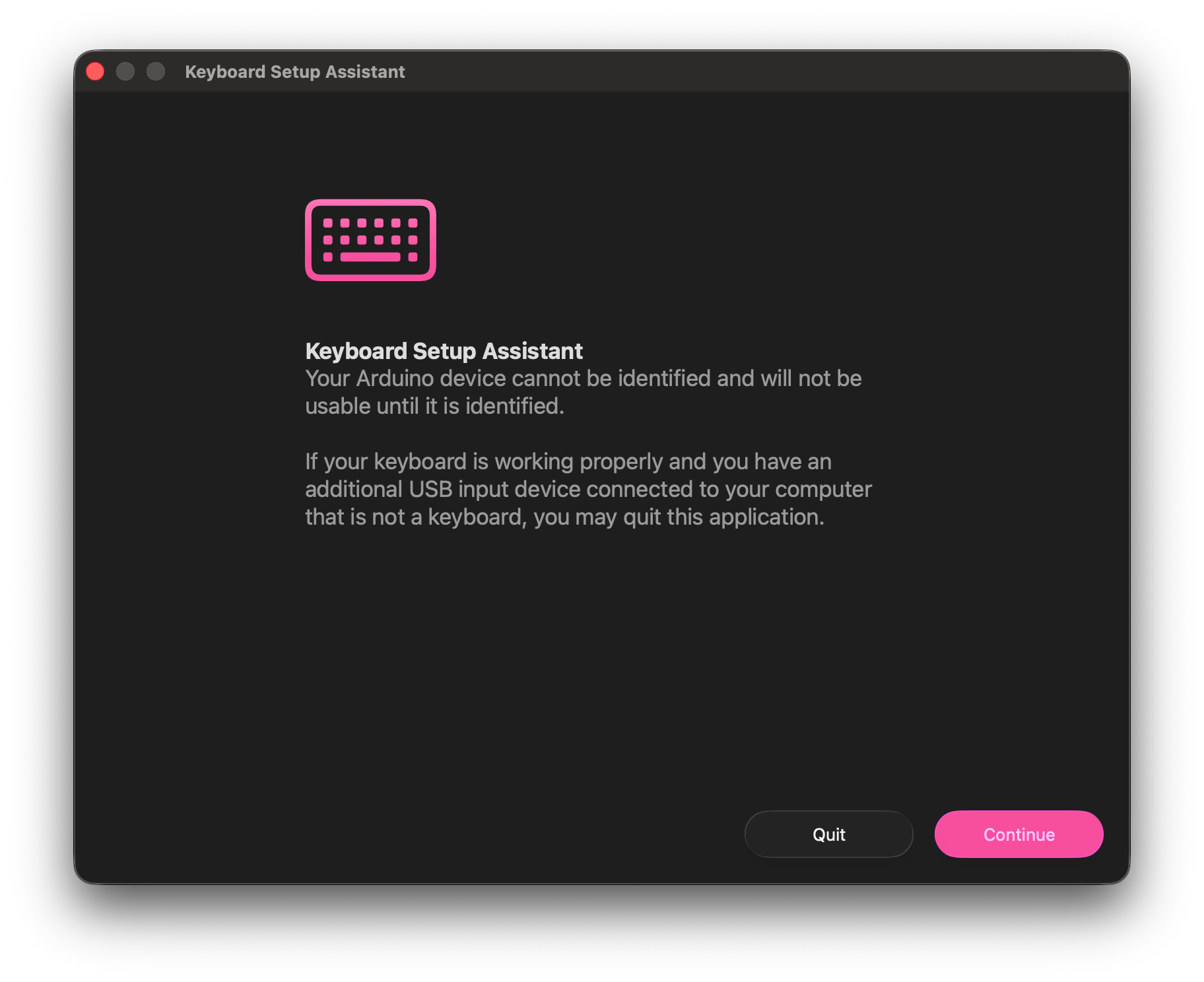
After the code is uploaded, you may see a pop-up like this, as your computer now sees the Arduino as an actual keyboard!